Setup guide
Connect a MetaTrader account
About ten minutes per account. You need MetaTrader 4 running on your PC or a VPS, and an IfStats account. Repeat the account steps for each broker account you want captured.
-
1 Create your IfStats account
An email address and a password. The free plan needs no card.
-
2 Add your broker account
On the Accounts page, add the account. You need its MetaTrader account number. It is in the terminal's title bar, and under Tools > Options > Server as the Login. Mark it as a demo account if it is one, so it stays out of your figures.
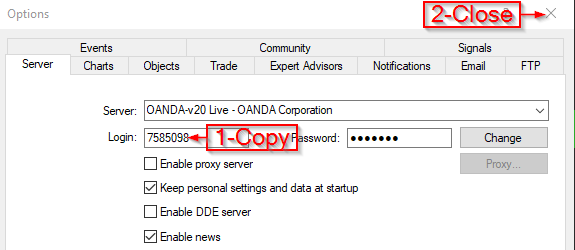
The account number is the Login on the Server tab. -
3 Generate the account's key
Next to the account on the Accounts page, choose Generate Key and copy the key. It starts with
ifs_live_.The key is shown once. Keep it until step 6. If it is lost, generate a new one; the old key stops working, and the EA needs the new one pasted in. -
4 Install the EA
Download IfStats.zip and extract
IfStats.ex4. In MetaTrader, choose File > Open Data Folder, open MQL4, then Experts, and copy the file there.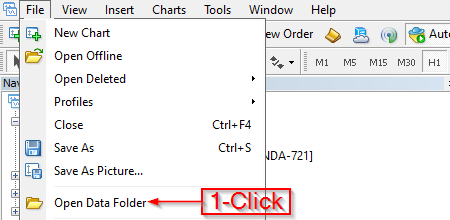
MQL4, then Experts, inside the data folder. -
5 Allow the connection
MetaTrader blocks EAs from contacting any website you have not approved, and this is the step most often missed. Choose Tools > Options > Expert Advisors, tick Allow WebRequest for listed URL, then add this address to the list:
https://api.ifstats.com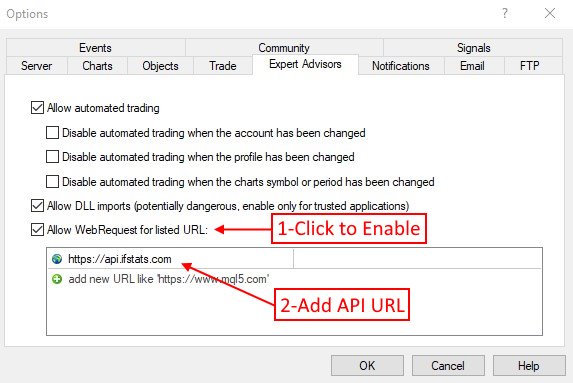
Tick the box, then add the address below it. -
6 Attach the EA and paste the key
In the Navigator, right click Expert Advisors and choose Refresh. Then right click IfStats and choose Attach to a chart. Any chart and any symbol will do, and one chart per account is enough.
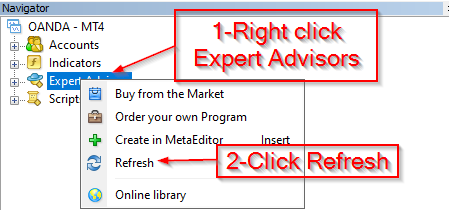
Refresh, so MetaTrader finds the new EA. 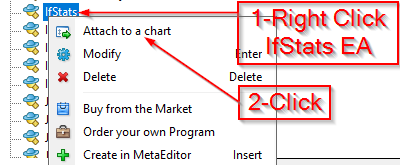
Attach it to any chart. In the window that opens, go to the Inputs tab, paste the key into
IfStats_Key, and choose OK. The other inputs can stay as they are. -
7 Show all history
The EA can only send trades MetaTrader has loaded. In the Terminal window, open the Account History tab, right click it, and choose All History. Older trades then go up on their own; you can do this before or after attaching the EA.
-
8 Check that it is working
The EA writes its state on the chart. Within a minute it should read Status: Connected, or Sending history while a long history goes up in batches. Your trades then appear on the Trades page, and the account shows as connected on the Accounts page.
If something is not right
- Status: Setup needed
-
MetaTrader is blocking the connection. Repeat step 5, and check the
address is exactly
https://api.ifstats.com. - Status: Cannot reach server
- The computer running MetaTrader cannot reach the internet, or a firewall is in the way. Nothing is lost: the EA keeps unsent trades and sends them once it connects.
- Status: Not sent
- The message under the status says why. Most often the key belongs to a different account or has been replaced: generate a new one and paste it in, as in step 3.
- Key: not set
- The key is missing. Right click the chart, choose Expert Advisors > Properties, and paste it on the Inputs tab. No restart is needed.
- Older trades are missing
- Choose All History as in step 7. If they are still missing, use Resync on the Accounts page, and the EA sends the whole history again the next time it checks in. Trades already stored are never duplicated.
- Still stuck
- Contact us with the account number and the exact text on the chart.